2026-05-23
Automate Gmail with OpenClaw: Put Send Outside the Agent Binary
A 54-case admission drill shows why Gmail drafts need a baked agent-safe binary, untrusted-content handling, and a separate human send path.

A Gmail agent that may create drafts but may not send mail cannot be built with the gmail.compose OAuth scope alone. Google accepts that same scope for both users.drafts.create and users.messages.send. If the process holding the token can reach the send command, “draft only” is a prompt preference, not a permission boundary.
That detail changes the entire OpenClaw setup. The safe design is not one generously scoped Gmail tool with a sentence telling the model to stop at drafts. It is a set of deliberately unequal lanes. The agent gets a binary whose baked safety profile cannot send. A separate, human-controlled runner owns sending. OpenClaw policy decides which binary the agent can invoke. OAuth limits which Gmail data each identity can reach, but it does not substitute for the missing local command boundary.
The send path should be physically absent from the agent's toolbox.
We checked this host before replacing the old tutorial. OpenClaw is present; gog is not. We therefore did not authorize a Google account, read a message, create a draft, or send email. Instead, a deterministic 54-case admission fixture exercised scope, binary profile, account and client binding, non-interactive output, content sanitization, draft review, replay state, mailbox mutations, and the human-send handoff. All 54 cases matched: 11 were ready, seven held for reconciliation or missing runtime, 34 blocked, and two returned cached receipts.
The old draft-only promise was false at the OAuth boundary
The earlier article treated OAuth setup as the hard part and draft-without-send as an operating preference. It also recommended moving the client JSON through a chat. Both choices collapse separate security decisions into one convenient setup flow.
Google's scope table is unambiguous. gmail.readonly permits viewing messages and settings. gmail.compose permits managing drafts and sending. gmail.modify permits reading, composing, and sending, with some limits around permanent deletion. gmail.send permits sending. Google recommends the narrowest scope that supports the application, but there is no draft-create-without-send Gmail scope listed.
The API reference confirms the overlap from the other direction. Draft creation accepts gmail.compose. Message sending also accepts gmail.compose. A token cannot tell whether the caller intends to stop after creating the draft.
So the local capability must tell.
The current gogcli project provides two useful kinds of guard. Runtime flags such as --readonly and --gmail-no-send can block a class of operations for one invocation. Safety-profile builds go further: the allowed command surface is compiled into the binary, explicit denies win, and a caller cannot re-enable blocked commands with configuration, environment variables, or additional shell arguments. The project's documented agent-safe profile allows useful Gmail reads, drafts, and selected mailbox operations while denying send, delete, authorization, and policy-changing commands.
Use the baked profile for an autonomous agent. Keep --gmail-no-send as a second brake, not as the only brake.
Requirements the OAuth dialog cannot enforce
A production design needs all three layers because each answers a different question.
| Layer | What it decides | What it cannot prove | Recommended boundary |
|---|---|---|---|
| Google OAuth | Which Gmail APIs and mailbox data a token may access | That a compose-capable caller will stop at a draft | Separate accounts or token buckets where duties differ; request the narrowest viable scope |
gog binary/profile | Which commands can be executed even when the token could authorize more | That OpenClaw will expose only the intended executable | Baked read-only or agent-safe profile for the agent; stock send-capable binary outside its reach |
| OpenClaw tool policy | Which executable, arguments, account alias, and wrapper the agent may invoke | That a broadly capable binary is safe internally | Expose one narrow wrapper and deny shell paths that can reach the human sender or rewrite policy |
These controls should overlap. If the OpenClaw policy is accidentally broadened, the baked binary still refuses send. If an operator launches the wrong agent command, --gmail-no-send still refuses it. If a token is stolen from the read-only lane, its OAuth scope still limits the Gmail API.
Overlap is useful when every layer fails closed in a different place.
Pin the mail tool before authorizing it
Do not begin by pasting a client secret into a server and then downloading “latest.” Reverse the order. Choose a reviewed gog release, record the exact version, obtain the binary from an official package or release artifact, verify its published checksum, and record the executable digest used by the wrapper. The current evidence in this article was reviewed against v0.34.1 and its pinned documentation, not an unbounded main branch.
For an agent-facing deployment, choose the safety profile before OAuth. The profile is part of the executable identity. The wrapper should reject a binary whose version or digest has drifted. It should also set a dedicated GOG_HOME, a named OAuth client, an exact Gmail account alias, a non-interactive mode, and machine-readable output. A different service user or home directory can point at a different keyring and silently change the account behind an apparently identical command.
admission packet
  executable digest  = reviewed agent-safe build
  gog version        = pinned release
  service identity   = dedicated unprivileged user
  GOG_HOME           = dedicated absolute directory
  client             = named OAuth client
  account            = exact mailbox alias
  output             = JSON, non-interactive
  content treatment  = sanitized and wrapped as untrusted
  delivery           = local evidence store, not an ambient chat send
The wrapper should not accept arbitrary subcommands. It should map a small internal operation such as search_mail or create_reviewed_draft to fixed gog arguments. Unknown commands are denied rather than passed through.
The old install snippet used a release-discovery shell pipeline. That is expedient for a laptop. It is a poor production record because the same script can resolve to a different artifact tomorrow. Pinning is not ceremonial; it makes the safety profile, command schema, and negative tests refer to the same binary.
The read lane treats every message as hostile input
Email is not merely data to summarize. It is a delivery mechanism for instructions written by strangers. An invoice can contain a sentence telling an agent to reveal previous messages. A forwarded thread can quote an old tool command. HTML can hide misleading context. None of it becomes trusted because Gmail authenticated the sender.
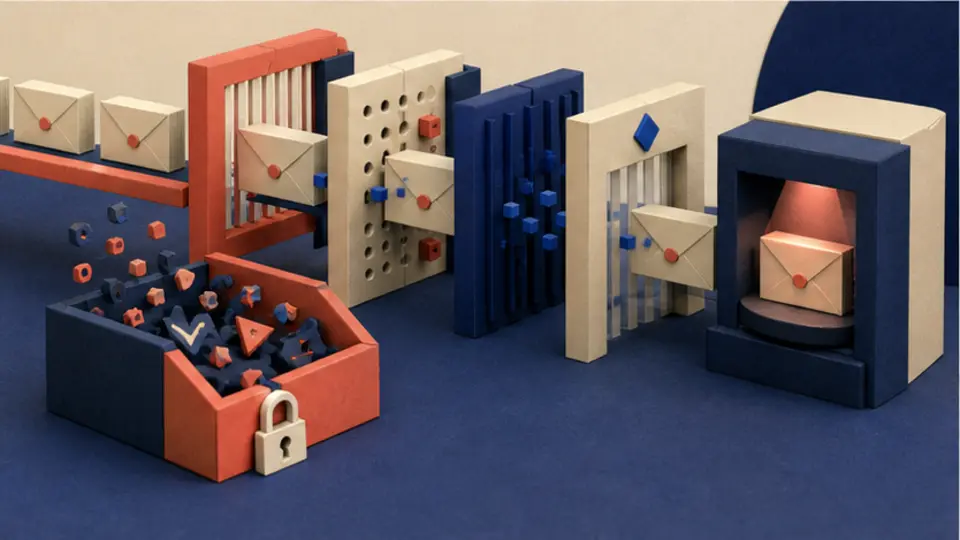
The current gog documentation exposes two relevant controls. Gmail read commands can sanitize message content, and automation output can be wrapped as untrusted. Use both when mail will enter a model context. Also require JSON and --no-input; a background job should fail instead of waiting on a prompt or changing output shape.
Start with gmail.readonly and a read-only safety profile. Return the minimum fields the workflow needs. If a routing job only needs sender, subject, date, labels, and thread identity, consider whether gmail.metadata is sufficient; Google documents that it excludes message bodies. Do not fetch full bodies just because the tool can.
Then separate interpretation from authority. The model may classify a message, propose a destination label, extract a deadline, or draft a reply. It may not treat a sentence in the message as approval to call another tool. Any action request must originate from the workflow's signed packet or from a fresh human decision outside the email body.
The draft lane needs a binary that cannot send
Draft creation requires more Gmail authority than reading. Because Google's compose scope also enables send, the token is necessarily broader than the desired agent behavior. This is where the baked profile earns its keep.
The agent-facing executable should admit draft create and update but contain no reachable send, reply, reply-all, autoreply, auth-add, or safety-policy write command. Its OpenClaw wrapper should also force the send guard on every call. The 54-case fixture blocks draft creation when only a stock binary is present, even if --gmail-no-send was requested. A mutable flag is helpful; it is not equivalent to an immutable command surface.
A draft request also needs a review binding. Hash the normalized subject, body, recipient set, attachments, referenced thread, account alias, client alias, and policy version. Store that digest with the draft receipt. If any of those values change after review, create a new review event rather than quietly updating the approved draft.
The useful output is not “draft created.” It is a receipt containing the Gmail draft identifier, thread identifier if present, normalized payload digest, tool version, account, client, attempt key, and timestamp. The actual draft remains in Gmail for a person to inspect.
The agent still cannot send it.
Put sending behind a different identity and executable

A human-send runner should not be another mode of the agent wrapper. It should be a separate executable path, owned by a different service identity or interactive operator, that OpenClaw's autonomous tool policy cannot invoke. It may use a stock send-capable gog binary and the narrow gmail.send scope when sending a new message, or a compose-capable token when sending an existing draft. The distinction is less important than who can reach it.
The runner accepts a small, single-use packet: exact account, exact draft or message payload digest, exact recipient set, human approval identity, expiry, and replay key. It compares that packet with the reviewed draft. A changed recipient, attachment, subject, thread, or body invalidates the approval. The runner returns a send receipt and consumes the approval.
Do not expose the sender through an unrestricted shell tool. Do not let the agent rewrite the OpenClaw policy that hides it. Do not put the sender and agent-safe binary in the same writable directory. The point is not to make sending awkward; it is to make the transition visible and independently auditable.
For some teams, the correct human-send runner is simply the Gmail web interface. That is a strong first deployment. Automation can search, classify, and draft while the operator reviews and presses Send in Gmail. A custom runner is justified only when its approval binding and receipts provide more value than that familiar control.
Remote OAuth is a context-binding problem
Google's installed-app flow uses the system browser, a loopback redirect, and PKCE. On a headless server, gog documents a remote/manual authorization flow, also using S256 PKCE. The authorization start and completion must use the same GOG_HOME, named client, and account context. Otherwise the callback can land in a different token bucket than the command wrapper later reads.
Create the OAuth client in Google Cloud, enable the Gmail API, and register the correct installed-app type. Transfer the client JSON directly to the server through an authenticated secret channel or secret manager. Do not paste it into Telegram, an agent prompt, a shell history, or the article's configuration. File permissions should restrict it to the dedicated service identity.
The token store deserves the same care. If the server uses an encrypted file keyring, its passphrase must be available to the same non-interactive process that runs the command. The gog install documentation warns against baking that passphrase into images, scripts, or process profiles. A keyring that only unlocks in an operator's login shell will produce a flaky automation job; a passphrase embedded in the wrapper produces a durable secret leak.
Google also notes that OAuth apps left in Testing can issue refresh tokens that expire after seven days. Moving a personal app to In production can avoid that testing behavior, but sensitive and restricted Gmail scopes still carry warning, verification, and usage constraints. Treat OAuth consent status as a deployment dependency, not a one-time browser click.
Ambiguous timeouts require reconciliation, not retry
Draft creation and send are side effects. A network timeout after the Gmail API accepts a request leaves the caller uncertain. Blindly repeating the command can create a duplicate draft or send twice. Declaring failure can hide a successful operation.
The local admission fixture therefore has three replay states. A confirmed receipt returns the cached result. A clean, never-started attempt may execute. An uncertain attempt enters HOLD_RECONCILE. The workflow searches for the expected draft or sent message using the bound account, thread, recipients, payload digest, and a narrow time window before deciding whether another operation is permitted.
Gmail's draft-create reference does not advertise an application-supplied idempotency key. That makes the external receipt ledger part of the design. The ledger must distinguish draft creation from draft update, draft send from direct send, and execution from later notification back to Telegram or another channel. A failed channel reply must never cause the email operation to run again.
Autoresponders need an additional loop boundary. The gog workflow documentation recommends external scheduling and label-based idempotency. It also calls out auto-response loop suppression. Even with those controls, begin with drafted responses. An inbound vacation responder, mailing list, or delivery notification can otherwise create an expensive conversation between two robots.
Mailbox state is a separate mutation lane
Labels, archive, read state, and trash are not “read” operations. They change what humans see and how other automations behave. A classification workflow may legitimately apply a label, but it should not inherit that power merely because it can read the message.
Give mailbox-state mutations their own operation names, OAuth requirement, review digest, and negative tests. The documented agent-safe profile can allow selected label and archive actions while continuing to block send and dangerous deletion paths. OpenClaw should still expose only the exact mailbox operations the workflow needs.
A good first rollout has no mailbox mutation at all. Produce a proposed-action report: message identifier, current labels, proposed labels, classification evidence, and confidence. Add one low-risk label only after the read lane has shown stable behavior. Archive comes later. Trash and permanent deletion do not belong in the same approval class.
Validation: attack the lanes in order
- Install without credentials. Pin the version and artifact digest. Verify the selected safety profile rejects send, reply, autoreply, auth changes, configuration changes, and unknown commands.
- Authorize a test mailbox for reading. Bind account, client, service identity, and
GOG_HOME. Require JSON, non-interactive mode, readonly, sanitization, and untrusted wrapping. - Exercise hostile content. Feed messages containing tool-like instructions, quoted commands, malformed HTML, oversized attachments, and requests to disclose other mail. The output may summarize them; it must not execute them.
- Add draft creation. Use the baked agent-safe profile plus the send guard. Require a normalized payload digest and store the Gmail draft receipt.
- Interrupt the request. Cut the connection before and after a draft is accepted. Verify that an uncertain attempt holds for reconciliation and that a confirmed receipt is cached.
- Keep sending manual. Review and send in Gmail until the organization has a reason to build a separate runner.
- If a runner is added, attack the handoff. Change one recipient, attachment, thread, body byte, approval expiry, account, or replay key. Every variant should stop before send.
The 54 synthetic cases used for this revision cover those admission decisions, not Gmail's behavior. They made zero Gmail API calls, performed zero mailbox mutations, read zero messages, created zero drafts, sent zero emails, used no credential, and invoked no model. The fixture proves only that one local decision function returned its declared outcome for every packet.
The deployment boundary on this host
This server is not currently ready for Gmail automation because gog is absent. That is a clean hold, not a partial success. No installation was performed during this article review, because choosing an OAuth client, Gmail account, token storage method, and send-review owner changes external state and deserves a deliberate deployment task.
Once the binary is installed, repeat the host probe against the actual executable. Record its version, digest, safety profile, service identity, keyring backend, GOG_HOME, named client, and account. Run the negative commands before adding a token. Then authorize only the read lane and confirm the effective safety report produced by gog.
If those checks pass, OpenClaw can expose the narrow wrapper as a typed tool. Skills may teach the agent when to search or draft; they do not create the security boundary. The binary profile and tool policy do that.
What changed from the old article
The old version was a broad setup guide: install the newest release, move a Google client JSON through chat, authorize Gmail, add scripts and cron, then rely on workflow policy to keep replies as drafts. It blurred secrets, OAuth scope, runtime capability, scheduling, and human approval.
This replacement removes the chat-secret path and the unpinned installer. It corrects the compose-scope claim, reports that gog is absent here, and makes draft-only operation depend on a baked agent-safe binary. It separates read, draft, mailbox-state, and human-send lanes; binds account and client context; treats mail as untrusted input; and gives ambiguous side effects a reconciliation state.
The result is less magical than “connect Gmail to your agent.” It is also a system whose failure can be understood before an email leaves the mailbox.
Sources
- Google Gmail API scopes
- Gmail API: create a draft
- Gmail API: send a message
- Gmail API: sending email
- Google OAuth 2.0 for installed apps
- gogcli v0.34.1 release
- gogcli: installation and keyring guidance
- gogcli: non-interactive automation
- gogcli: baked safety profiles
- gogcli: named OAuth clients and remote authorization
- gogcli: Gmail workflows and send guard
- gogcli: Gmail autoreply workflow
- OpenClaw: typed tools and tool policy